Tags
Why are tags useful?
Tags can be useful in sorting and grouping user entries and making them easily viewable from the list page. For instance you may want to tag some entries as "Finalists" in a contest, or "For Review" if entries need to go through layers of moderation.
Once you tag entries with a specific tag (or list of multiple tags) you can then filter all your entries in the list by that tag.
Tag Management
Before tagging any entries your must first be able to create and manage them. You can access the tag "manager" by clicking Tags from the left-hand sidebar.
The Tags list supports searching, sorting and paging. These choices are included in the page URL, so a copied Tags URL opens the same view and your browser's Back and Forward controls restore earlier list views. Opening a tag and then saving it, or using the Tags breadcrumb, returns you to that list view.
Creating Tags
To create a new tag:
- Click the green New Tag button located in the top right corner of the Tags list.
- Give your tag a name
- Save your changes.
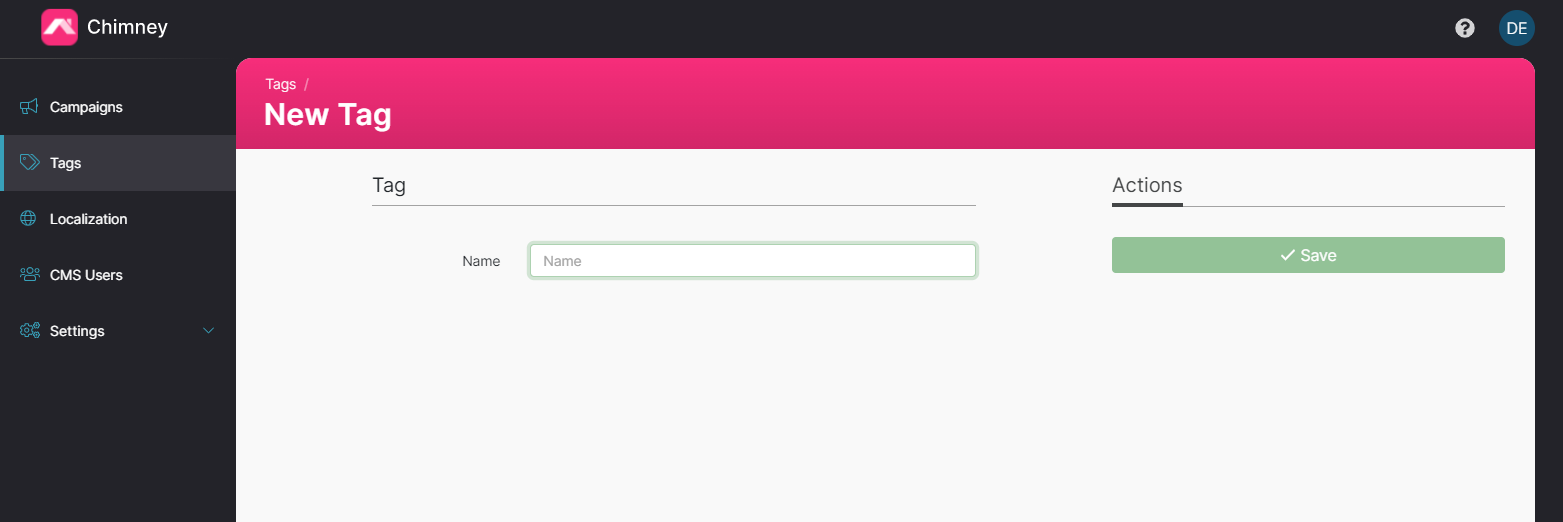
All tags created in Tags Manager are available from any campaign. You can now use them to tag your entries.
Editing Tags
Once you have created and started using a new tag, you can edit the name at any time.
- From the Tags list, choose which tag you wish to update and click Edit.
- In the name field change the name of the tag
- Save your changes
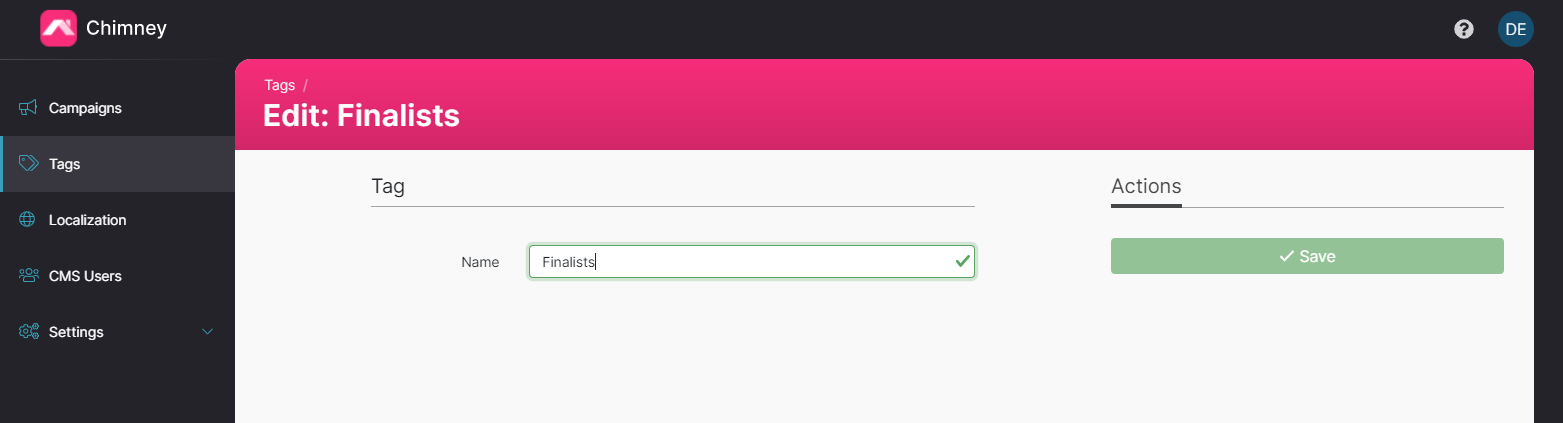
Any entries tagged with the old tag name will be automatically updated to use the new tag name.
Deleting Tags
- Choose which tag would you like to delete and click on the trash icon on the row of the tag you would like to delete.
- Confirm your action in the pop-up window.
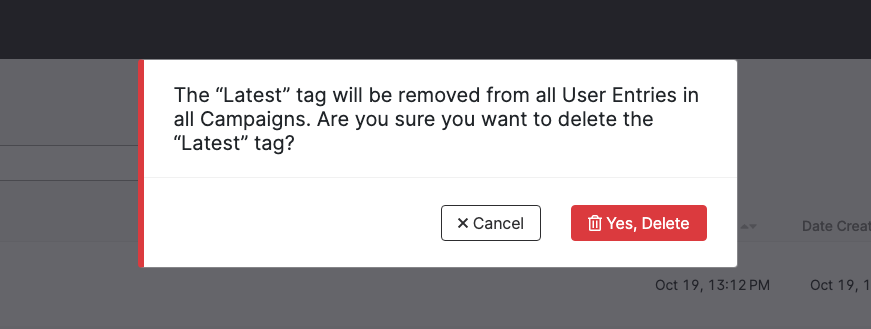
Once deleted, the tag will be removed from any entries that were previously tagged with it. If deletion fails, the CMS shows an error and leaves the tag and your saved entry filters unchanged so you can retry.